Interface 2: Settings
The Settings page allows workspace administrators to manage key configurations for their Finnex AI account, including organization details, team members, and workspace access.
Using the Database Interface
Tab Overview
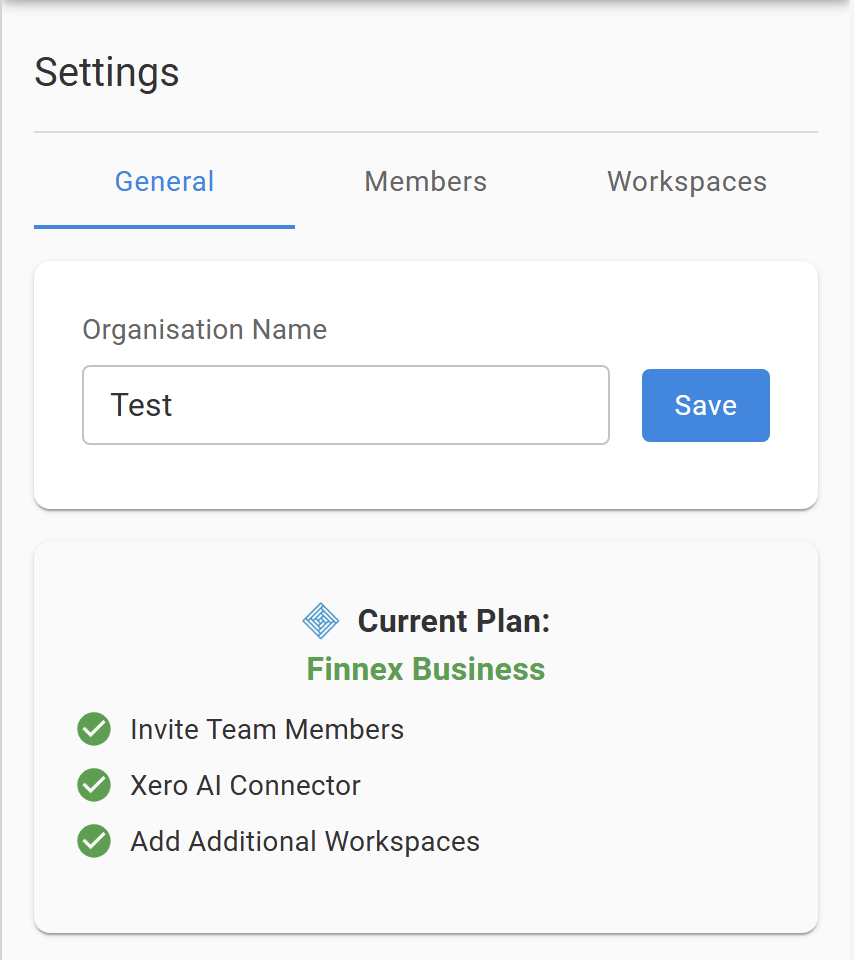
General: Update your organization name and view your current subscription plan.
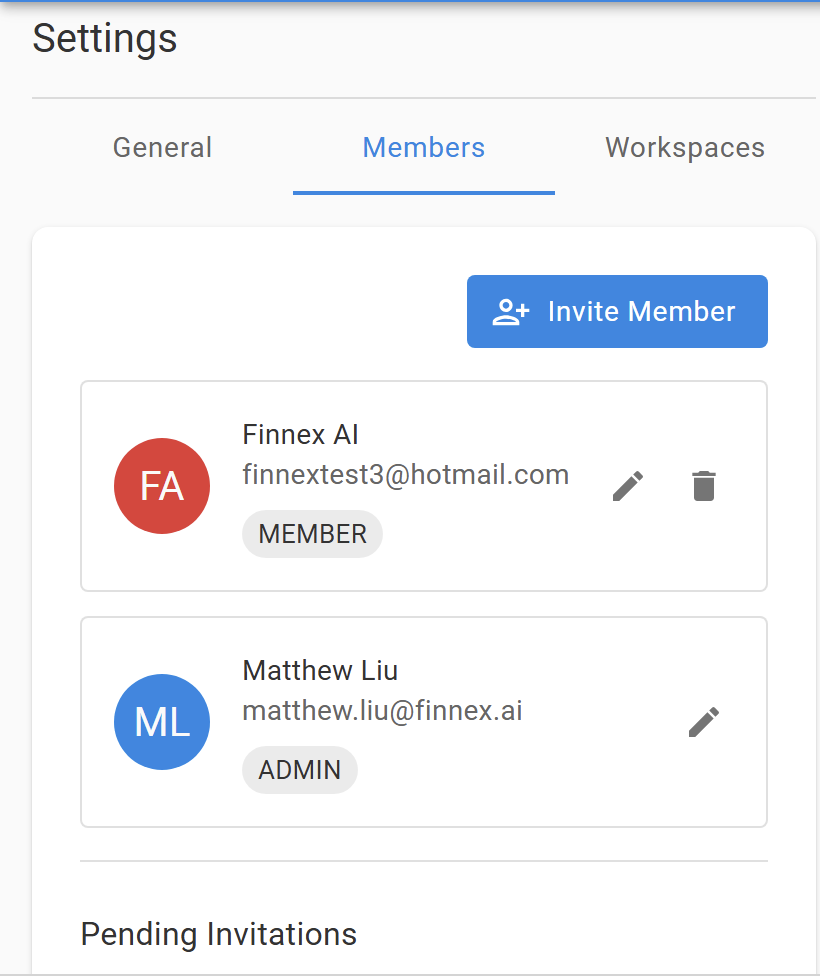
Members: Manage team members with options to invite, assign roles, and remove access.
Workspaces: Manage and add additional workspaces (available with a Business Plan).
General Tab
Organisation Name
Use this field to rename your organization as it appears in Finnex AI.
Click Save after editing to apply changes.
Current Plan Details
Displays your active subscription plan with included features.
System Connectors
Enable or Disable Xero or QuickBooks (coming soon) connectors.
Members Tab
Add and manage user access to your organisation.
Invite Member
Click the Invite Member button to send an invitation by email. The invited user will receive an email to join your organisation.User Roles
Admin: Can manage members, settings, and connectors.
Member: Can access assigned workspaces and interact with AI features.
Pending Invitations
Shows any invitations that haven’t yet been accepted. You can resend or revoke invitations here.Edit or Remove Members
Use the pencil icon 🖊️ to edit roles or the trash icon 🗑️ to remove members.
🔐 If the invited member already has an existing account and their own workspace, they can choose to bring their workspace over or start fresh. If a workspace is ported over, it will count as an additional workspace and incur standard cost, as only one free workspace is included in the Business Plan.
Workspaces Tab
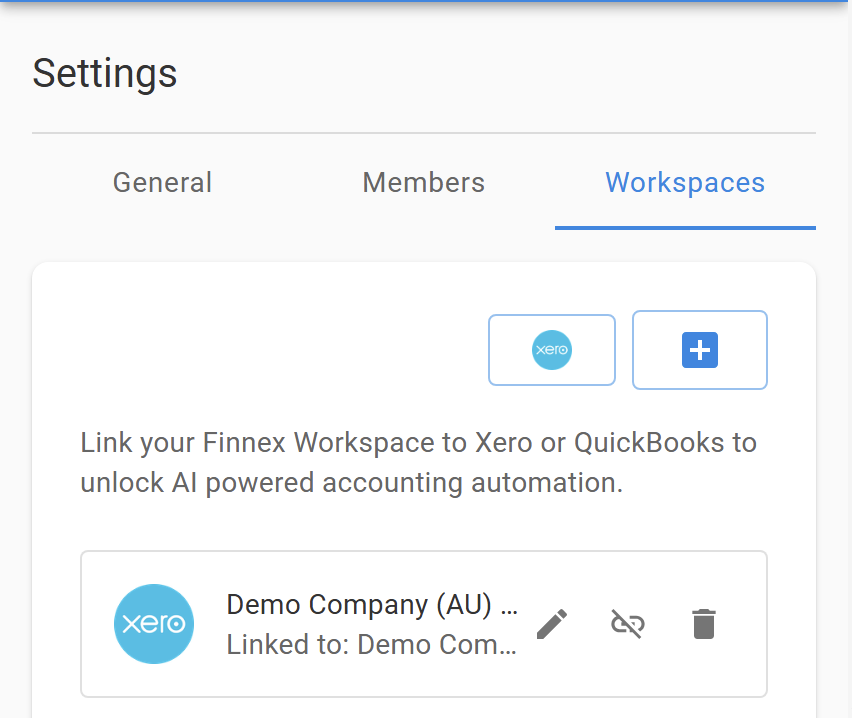
Manage your Finnex Workspaces and link them to accounting systems like Xero or QuickBooks.
Connect a Workspace
Click the ➕ icon to add a new workspace. You could select a Xero or Unlinked Workspace Type.Manage Linked Workspaces
🖊️ Edit: Rename or update linked workspace.
🔗 Unlink: Disconnect the workspace from Xero or QuickBooks.
🗑️ Delete: Permanently delete the workspace and its data.
System Link Note
Linking a workspace to a system unlocks AI-powered accounting automation like:Posting invoices and journals
Pulling reports and bank transactions
AI-based data extraction and sync
🔐 Note: Only users with Admin privileges can change organization settings or view subscription information.